
B04 · Tutorial
Lock Down a Privacy Laptop: Firmware Password, Tails and Mullvad (Phase 1.2–1.5)
Nothing loads from YouTube until you press play. The video then plays in YouTube’s privacy-enhanced mode. Everything on screen in the Hardware Lab is a training value.
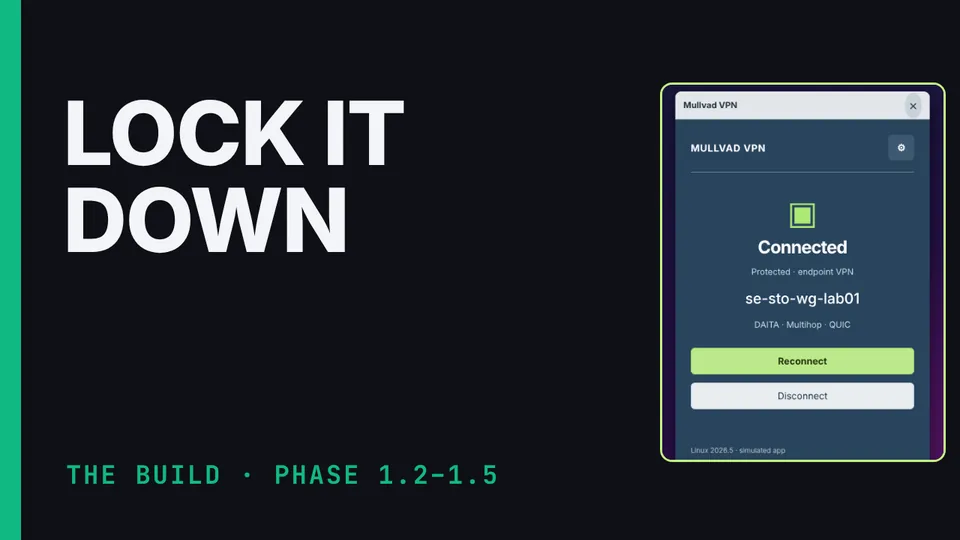
Phase 1.2 to 1.5 of the Communication Suite build: lock the laptop's firmware settings (supervisor password, Secure Boot on, fingerprint reader off, USB boot allowed), make and test the Tails stick, install the one browser the phone install needs, and set up Mullvad with Lockdown and QUIC, plus DAITA and Multihop for direct or low-signature use (off in the nested router profile). Then the three-part check that closes Phase 1: passphrase, Tails, kill switch. Demonstrated in the suite's Hardware Lab.
What you’ll learn
- Lock the firmware
- Prepare Tails and the installer browser
- Configure Mullvad and prove the kill switch
Chapters
The honest limits
Firmware passwords don't stop every physical attack. Obfuscation makes casual VPN identification harder; destination IPs and flow behaviour still give clues. The Hardware Lab's screens are illustrative, its connection results are simulated, and it doesn't simulate Tails.
Check before you rely on it
These details change. Confirm them against the vendor’s current pages.
- Mullvad desktop feature names and availability (QUIC, DAITA, Multihop, Lockdown).